Cave: Game User Interface (Game UI) System
Introduction to UI Elements
Lesson 1 of 6 • 10 XP
Keep your place in this quest
Log in or sign up for free to subscribe, follow lesson progress, and access more learning content.
In this lesson, we will take a first look at the different types of UI Elements available in Cave Engine for creating user interfaces.
UI Elements are used to build everything the player sees on top of the game world, such as menus, buttons, HUDs, health bars, item counters, settings screens, dialogue boxes, and other interface components.
Before creating a complete interface, it is important to understand what each UI Element is used for and when you should use it.
1. Creating a New UI Element
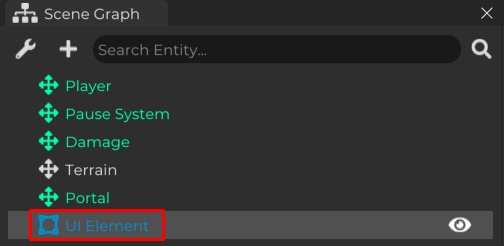
To create a new UI Element, right-click inside the Scene Graph and select the Interface option.
Inside this menu, you will find the interface elements provided by Cave Engine.
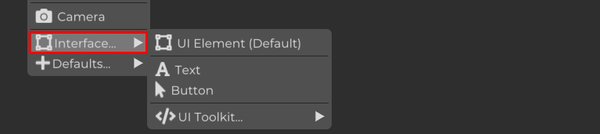
UI Element Default

Creates a default Cave Engine UI Element.
This is the base element of the UI system and can be used as a starting point for creating other interface components.
A default UI Element can work as a visual panel, background, container, icon, image, or any other basic interface block. It is also very useful for organizing child elements, since UI Elements can be parented to each other in the Scene Graph.
For example, you can create one default UI Element to represent a menu panel, then add buttons, texts, and icons as children of it.
Text

Creates a UI Element used to display text on the interface.
This element allows you to configure the displayed content and customize properties such as font, size, color, alignment, and other visual settings.
Text elements are commonly used for titles, labels, subtitles, instructions, item counters, health values, dialogue text, score numbers, and any other information that needs to be displayed to the player.
Button

Creates a UI button already configured with a text component.
Buttons are interactive UI Elements. They can react to different states, such as:
- Normal, when the button is idle.
- Hover, when the mouse cursor is over the button.
- Click, when the button is clicked.
Buttons can also execute Python code in response to these events, allowing you to create interactions such as starting the game, opening menus, changing settings, closing windows, or triggering any custom behavior you need.
This makes the Button element one of the most important UI components when creating menus and interactive interfaces.
UI Toolkit

Inside the UI Toolkit option, Cave Engine provides UI Elements focused on user input and interaction.
These elements are useful when you need the player to change values, type information, or interact with settings during the game.
- Input Slider
Creates a slider control, allowing the user to select a value within a defined range by moving it with the mouse.
This is ideal for settings such as volume, brightness, mouse sensitivity, music level, effects level, or any other option based on a numeric range or percentage.
- Input Number
Creates a numeric input field that can be adjusted by moving the mouse or editing the value directly.
This is useful for settings that require specific numbers, such as sensitivity values, custom parameters, debug options, or numeric configuration fields.
- Input Text
Creates a text input field where the user can type information directly through the interface.
This is useful for player names, save names, search fields, descriptions, chat messages, or any other textual input.
All UI Toolkit elements work during gameplay, allowing the player to interact with them in real time.
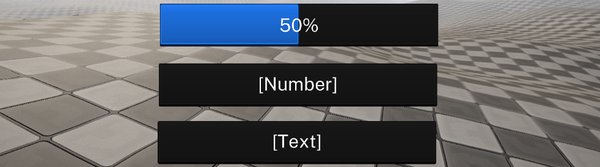
With these options, you can choose the most appropriate UI Element for the type of interface you want to create.
Each element has a specific purpose, allowing you to build anything from simple HUD elements to more complete menus and interaction systems.
In this Quest, we will start with the first option, UI Element Default, which will serve as the base for the next lessons.