Cave: Руководство по началу работы
Understanding Entity Components
Lesson 10 of 19 • 25 XP
Keep your place in this quest
Log in or sign up for free to subscribe, follow lesson progress, and access more learning content.
Components define what an entity can do.
An entity is the container. Components are the features attached to that container.
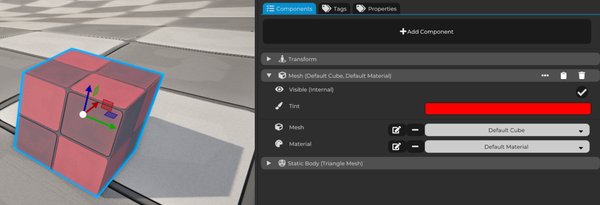
This lesson introduces the main component types you will see as a beginner. You do not need to memorize every option yet. The goal is to recognize the pattern:
> When an entity needs a feature, you usually add the component that provides that feature.
Entities Are Built From Components
A new entity can start very simple.
Then, as you add components, it becomes more capable:
- Add a
Transform Component, and it will have a place in the 3D World. - Add a
Mesh Component, and it can become visible. - Add a
Rigid Body Component, and it can collide with the world. - Add a
Python Component, and it can run gameplay code. - Add a
Logic Bricks Component, and it can run visual logic. - Add an
Audio Player Component, and it can play sound.
This is the normal Cave workflow: build entities by combining components.
For example:
| Object You Want | Possible Component Setup |
|---|---|
| Torch | Transform, Mesh, Light, Audio Player. |
| Door | Transform, Mesh, Rigid Body, Logic Bricks or Python. |
| Player | Transform, Character, Camera, Animation, Python. |
| Health Pickup | Transform, Mesh, Rigid Body trigger, Logic Bricks or Python. |
Instead of searching for a special object type for every situation, you compose the object you need.
Core Components
Some components are so common that you will see them constantly.
| Component | Main Purpose |
|---|---|
| Transform Component | Stores position, rotation, and scale. |
| Camera Component | Defines a camera view. |
Transform Component
The Transform Component stores position, rotation, and scale.
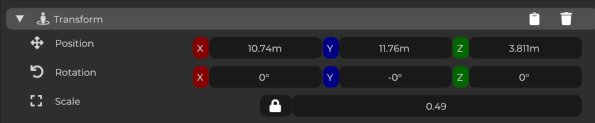
Most 3D entities depend on it because most objects need to exist somewhere in the world. When you move, rotate, or scale an entity in the 3D View, you are editing its transform.
Many other components depend on the transform:
- A light needs a position.
- A mesh needs a position.
- A camera needs a position.
- A 3D sound source needs a position.
Camera Component
The Camera Component defines a camera view.
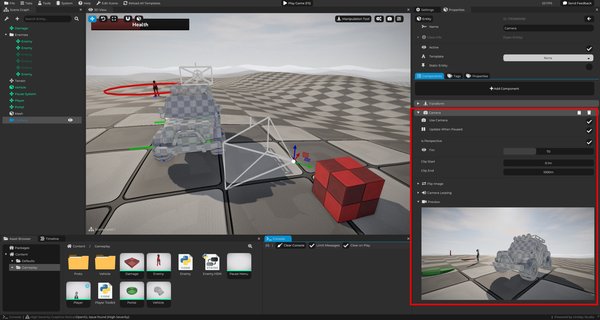
Use it when you want an entity to act as a game camera.
Cameras are used for:
- First-person games.
- Third-person games.
- Top-down games.
- Menus.
- Cutscenes.
- Special views.
A scene has a default scene camera, but gameplay cameras are usually entities with Camera Components. That makes them easier to move, parent, animate, script, or switch during gameplay.
Graphics Components
Graphics components control what the player sees.
| Component | Use It For |
|---|---|
| Mesh Component | Visible 3D objects. |
| Light Component | Local light sources. |
| Particle Component | Visual effects made from many small pieces. |
| Animation Component | Skeletal animation playback. |
| Animation Socket Component | Attaching child entities to animated bones. |
Mesh Component
The Mesh Component renders a mesh using a material.
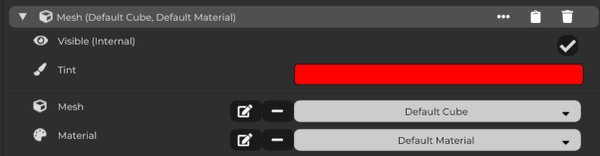
Use it for:
- Props.
- Walls.
- Characters.
- Doors.
- Weapons.
- Environment pieces.
- Anything visible.
A mesh component usually references a mesh asset and a material asset. The mesh provides the shape, while the material controls the surface appearance.
Light Component
The Light Component adds local lighting to the scene.
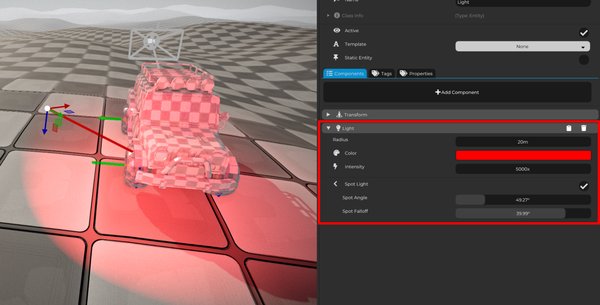
Use it for:
- Lamps.
- Torches.
- Magic lights.
- Glowing props.
- Spotlights.
Scene sun and ambient light affect the whole scene. Light components are placed on entities when you need local lighting in a specific place.
Particle Component
The Particle Component creates repeated visual elements and effects.
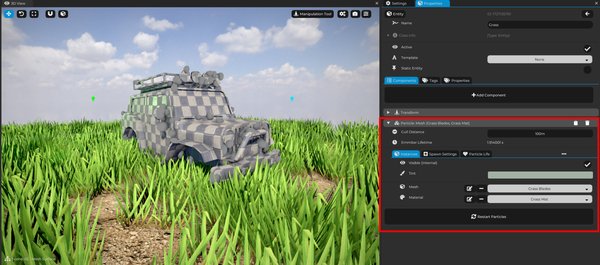
Use particles for:
- Smoke.
- Sparks.
- Dust.
- Fire.
- Wind.
- Debris.
- Magic effects.
Particles are useful because you do not want every spark or dust puff to be a full manually placed entity. One particle component can generate and control many small visuals.
Animation Component
The Animation Component plays skeletal animations.
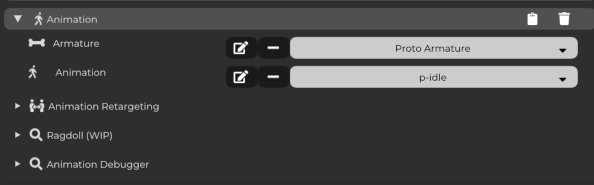
It works with armatures and animation assets, and it can handle playback, blending, layers, and the final animated pose.
Use it for:
- Animated characters.
- Animated creatures.
- Skeletal props.
- Any imported animated mesh that uses bones.
Animation Socket Component
The Animation Socket Component attaches a child entity to a specific bone of a parent animated entity.
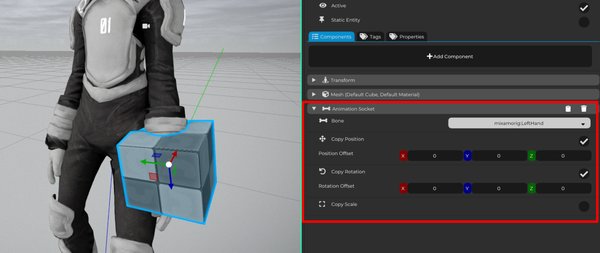
Use it for:
- Swords.
- Guns.
- Shields.
- Helmets.
- Backpacks.
- Hand props.
Instead of manually updating the prop every frame, the socket follows the selected bone.
Physics Components
Physics components control collision and physical movement.
| Component | Use It For |
|---|---|
| Rigid Body Component | Collision, physics objects, triggers. |
| Character Component | Player and NPC character movement. |
| Physics Constraint Component | Connecting rigid bodies together. |
Rigid Body Component
The Rigid Body Component gives an entity physics behavior.
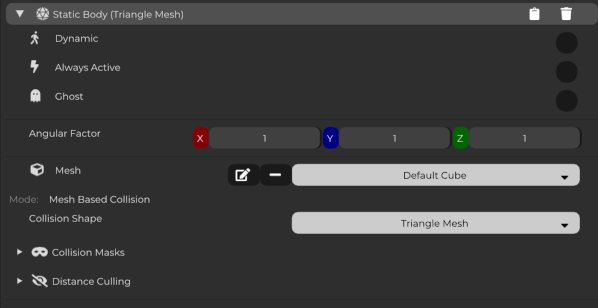
Use it for:
- Static collision.
- Dynamic objects.
- Physics props.
- Trigger-like ghost objects.
For example, a wall can use a static rigid body so the player cannot pass through it. A movable crate can use a dynamic rigid body so it can react to forces.
Character Component
The Character Component is designed for character-style movement.
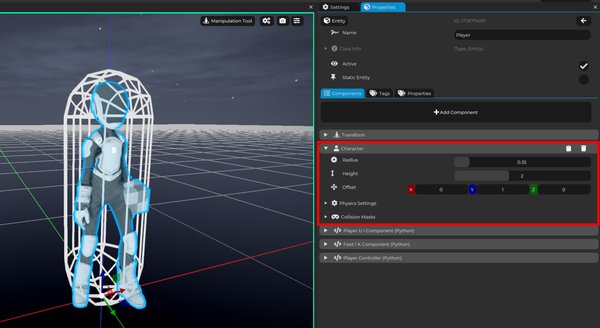
Use it for players or NPCs that need to:
- Walk.
- Jump.
- Slide along walls.
- Handle slopes.
- Move like a character instead of a loose physics object.
This is usually a better starting point for a controllable character than a plain rigid body.
Physics Constraint Component
The Physics Constraint Component connects rigid bodies together.
It is useful for more advanced physics setups, such as:
- Hinges.
- Joints.
- Bridges.
- Ragdoll-like setups.
- Connected physics objects.
You will not need it immediately, but it is good to recognize what it is. Later, it can help with things like swinging doors, hanging objects, or mechanical pieces.
World and Game Components
Some components help build the world or present the game to the player.
| Component | Use It For |
|---|---|
| Terrain Component | Outdoor landscapes and sculpted ground. |
| Audio Player Component | Sounds, music, ambience, and 3D audio. |
| UI Element Component | Text, buttons, panels, HUDs, and menus. |
Terrain Component
The Terrain Component creates and edits terrain.
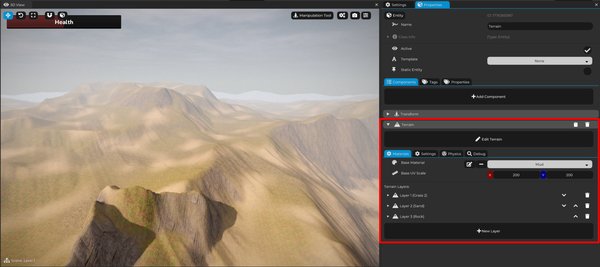
Use it for outdoor levels, landscapes, hills, valleys, roads, and large ground surfaces.
Terrain has its own editing tools, which are covered later.
Audio Player Component
The Audio Player Component plays sounds or music.
It can be used for:
- Music.
- Ambient loops.
- Sound effects.
- 3D positional audio.
- UI sounds.
Audio can also be triggered through scripts, Logic Bricks, timelines, UI callbacks, and animation callbacks.
UI Element Component
The UI Element Component creates game interface elements.
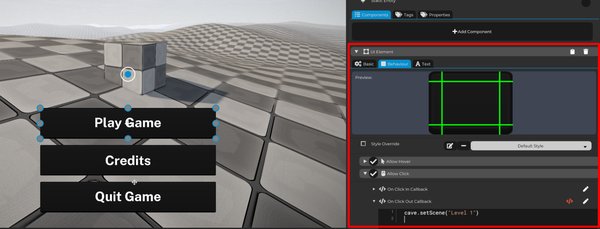
Use it for:
- Text.
- Buttons.
- Panels.
- Menus.
- Health bars.
- HUD elements.
UI in Cave is built from entities too, which means UI can use hierarchy, components, properties, and logic like other parts of the game.
Logic Components
Logic components make entities behave.
| Component | Use It For |
|---|---|
| Python Component | Reusable Python gameplay behavior. |
| Python Code Component | Small inline Python behavior. |
| Logic Bricks Component | Visual scripting graphs. |
| State Machine Component | State-based behavior. |
Python Component
The Python Component attaches a Python script asset to an entity.
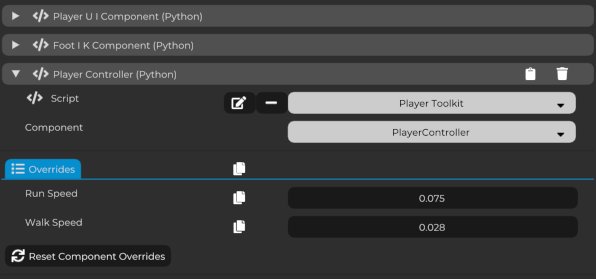
Use it for reusable gameplay logic such as:
- Door behavior.
- Enemy behavior.
- Interactions.
- UI logic.
- Game rules.
- Custom systems.
Python Code Component
The Python Code Component stores small inline Python snippets directly in the component.
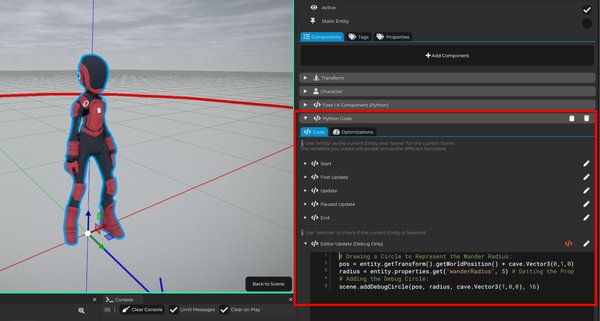
Use it for quick tests, small local behavior, or one-off prototypes.
For larger reusable logic, prefer a Python Script asset with a Python Component.
Logic Bricks Component
The Logic Bricks Component attaches a Logic Bricks asset to an entity.
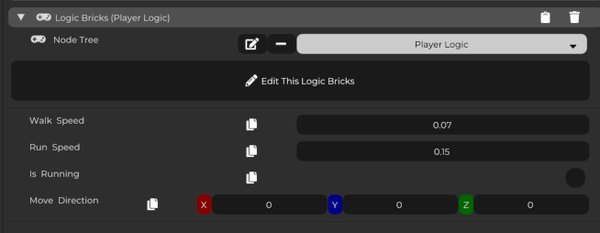
Logic Bricks are Cave's visual scripting system. They let you create behavior by connecting nodes instead of writing code directly.
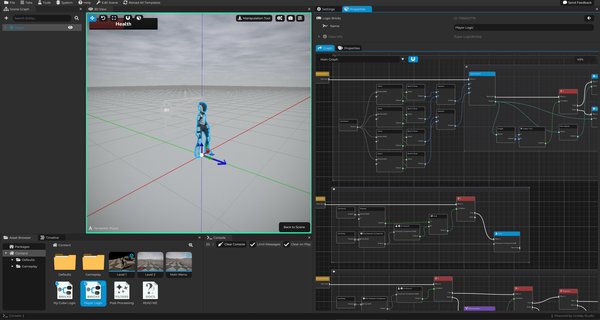
Use them for triggers, simple interactions, UI behavior, and gameplay events that are easier to understand visually.
State Machine Component
The State Machine Component attaches a hierarchical state machine to an entity.
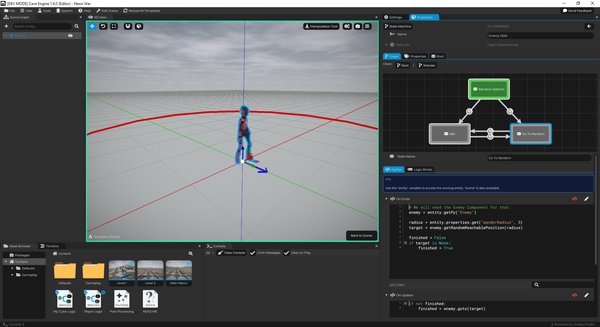
State machines are useful for behavior that has clear states, such as:
- Idle.
- Walk.
- Chase.
- Attack.
- Flee.
- Dead.
They are especially useful for enemies, NPCs, and structured gameplay logic.
Vehicle Components
Cave also includes vehicle-related components.
You may see these if you generate starter vehicle content.
| Component | Purpose |
|---|---|
| Vehicle Component | Turns a physics object into a vehicle-style body. |
| Wheel Component | Defines wheel behavior for a vehicle. |
The Vehicle Component works with a rigid body and wheel components.
The Wheel Component includes wheel-related behavior such as suspension, steering, wheel radius, and whether the wheel is a front wheel.
Practical Component Recipes
Here are a few simple ways to think about component composition:
| Goal | Component Recipe |
|---|---|
| Visible static prop | Transform + Mesh. |
| Solid wall | Transform + Mesh + Rigid Body. |
| Moving player | Transform + Character + Python + Camera. |
| Torch with ambience | Transform + Mesh + Light + Audio Player. |
| Button in a menu | UI Element + Python or Logic Bricks. |
| Enemy behavior | Character + Animation + State Machine or Python. |
These are not strict rules. They are starting points.
As you build more objects, you will get faster at choosing the right components for the job.
Other Components
Cave has more specialized components than this lesson covers.
That is normal.
You do not need to know every component before making your first scene. For now, focus on the useful pattern: an entity becomes useful when you add the right components to it.