Cave: Руководство по началу работы
Play Mode and Testing Your Game
Lesson 7 of 19 • 20 XP
Keep your place in this quest
Log in or sign up for free to subscribe, follow lesson progress, and access more learning content.
Editing a scene is only half of the work. You also need to test how it behaves when the game is running. Cave makes this fast with "Play Mode".
Play Mode runs the current scene inside the editor so you can test gameplay, controls, scripts, logic, cameras, UI, physics, and scene behavior without exporting the game.
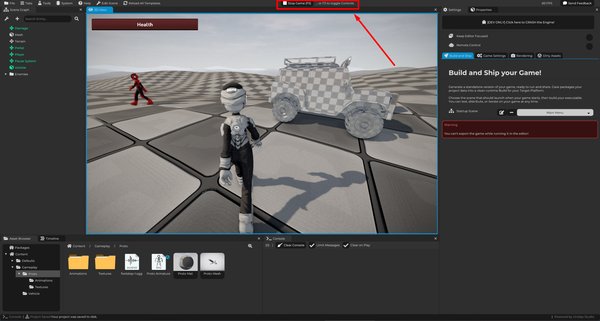
Starting Play Mode
To start Play Mode, press F5, you can also click the Play Game button in the editor toolbar.
When Play Mode starts, Cave saves dirty project content first. This helps make sure the running scene matches the latest saved version of your work. After that, the editor switches the scene into game simulation.
> Notice that in Cave, Play Mode happens inside the Editor itself, bringing a better development experience to you.
Stopping Play Mode
To stop Play Mode, press F5 again. If you have Editor controls enabled (you will see this in a moment), you can also click the Stop Game button in the editor toolbar.
When Play Mode stops, Cave exits game simulation and reloads the project content from disk. That means changes made during Play Mode are temporary. For example, if you move an entity while the game is running, that movement is for testing. When you stop Play Mode, the scene returns to the saved version.
This is important: Do not use Play Mode as a way to permanently edit your level. Use it to test behavior.
Editor Controls During Play Mode
When Play Mode starts, Cave gives control to the game.
That is usually what you want. If your game uses mouse look, movement keys, camera controls, or UI input, the game needs to receive those inputs instead of the editor. This also means that the entire Editor Interface is disabled for manipulation.
While playing, the top section of the Editor show a message like:
Stop Game (F5) ... or F3 to toggle Controls
Press F3 to enable editor controls while the game is still running, this lets you inspect the scene during Play Mode, enabling the Editor Interface again for editing. Press F3 again to give controls back to the game.
When you stop the game, it always bring the Editor Interface to enabled again.
Inspecting the Game While It Runs
As we just saw, with editor controls enabled during Play Mode, you can inspect what is happening in the scene.
This is useful for checking:
- Where entities are moving.
- Whether triggers are firing.
- Whether cameras are positioned correctly.
- Whether UI is visible.
- Whether physics objects are behaving correctly.
- Whether scripts or logic are changing values as expected.
The Scene Graph, Properties, and Console are especially useful while testing.
While in Play Mode, your game logic continues to run regardless if you have controls enabled or not. So it's important to know that manually selecting, editing or changing the Entities may break your own game logic during that gameplay session.
Remember that runtime changes are still temporary. If you want a change to be permanent, stop Play Mode and make the change in edit mode.
The Console Is Part of Testing
Keep the Console visible while testing.
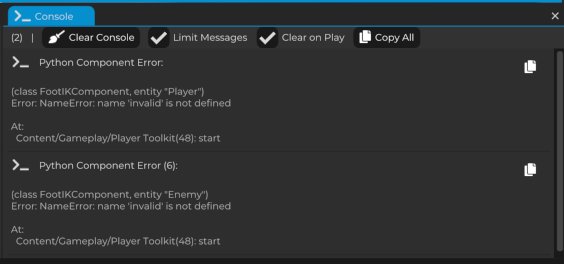
It can show:
- Script prints.
- Engine messages.
- Warnings.
- Errors.
- Import or save messages.
- Runtime feedback.
If something does not work, check the Console before guessing. It often gives you the first real clue, for example:
- A script might fail to run.
- An asset reference might be missing.
- Logic might print a value you did not expect.
- A warning might explain why something was skipped.
Testing is much faster when you read the feedback the engine is already giving you.
Play Mode Is Not the Same as Exporting
Play Mode is the fastest way to test inside the editor, but it is still running with the editor around it.
That is perfect for quick iteration. However, sometimes you need to test the game more like a player would experience it.
For that, use the standalone runtime test:
Testing as a Standalone Runtime
To test the game in a separate runtime window:
- Open the
Settingstab. - Go to
Game Settings. - Find
Test your Game as a Runtime. - Choose whether to play the current scene if that option is available.
- Click
Save and Run Standalone Player.
Cave saves the project and launches the game through the player/runtime.
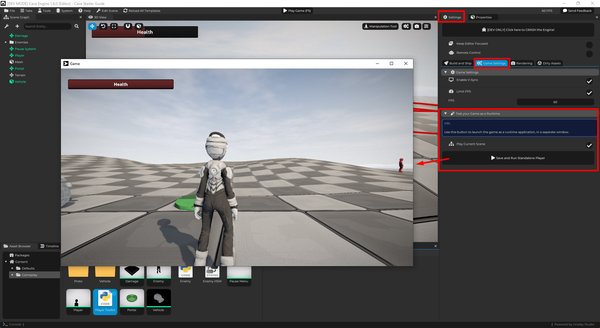
This is useful when you want to test window behavior, input focus, game startup, player controls, runtime-only behavior or simply what the game feels like outside the editor.
It is also particularly useful when creating and testing online games, where you need multiple game instances running at once.
You do not need to use standalone testing after every small change. Use Play Mode for fast iteration and standalone testing when you want a more realistic game run.
A Good Testing Loop
A simple Cave testing loop looks like this:
- Edit the scene.
- Press
F5to enter Play Mode. - Test the behavior.
- Check the Console.
- Press
F5to stop. - Make changes in edit mode.
- Repeat.
This loop is one of the main reasons the editor is fast to work with.
Build a little, test a little, fix a little, and keep moving.