Cave: Getting Started Guide
Engine Architecture and Terminology
Lesson 5 of 19 • 10 XP
Keep your place in this quest
Log in or sign up for free to subscribe, follow lesson progress, and access more learning content.
Cave is designed to be simple to learn, but it still has a few important concepts that you need to understand.
This lesson explains the core words you will see everywhere in the editor: scene, entity, component, asset, entity template, transform, rigid body, character component, Python component, logic brick, timeline, and runtime.
This is a top-level overview, and it does not go into the specifics of each word, but it's important to start improving your understanding of the engine. Once these words make sense, the rest of the engine becomes much easier to read.
The Big Picture
Most Cave projects are built from a few repeated ideas:
| Concept | Simple Meaning |
|---|---|
| Scene | A level, menu, test area, or playable space. |
| Entity | An object inside a scene. |
| Component | A feature attached to an entity. |
| Asset | Reusable project content stored in the Asset Browser. |
| Entity Template | A reusable entity setup, similar to a prefab. |
For example, imagine a wooden crate in a level:
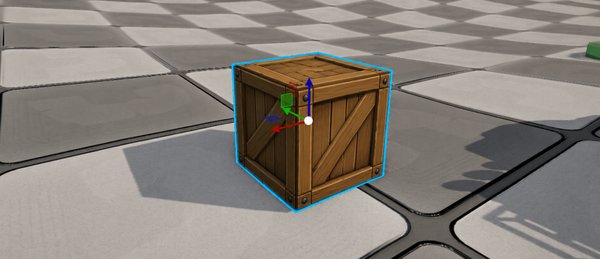
- The level is a
Scene. - The crate placed in the level is an
Entity. - The crate's position is stored in its
Transform. - The visible model is handled by a
Mesh Component. - The collision can be handled by a
Rigid Body Component. - The model, material, and texture used by the crate are
Assets.
If you want to reuse that crate setup in many scenes, you can save it as an Entity Template.
Scene
A scene is a collection of entities.
Scenes can be used for:
- Game levels.
- Menus.
- Test maps.
- Prototype rooms.
- Cutscene spaces.
Only the active scene is edited in the main 3D View. When you test the game, Cave runs the scene as gameplay instead of only editor content.
When exporting or testing the project as a runtime, the project settings decide which scene is used as the startup scene. You can change that by going to the Settings Tab.
Entity
An entity is an object in a scene.
Entities can be visible or invisible. They can be simple or complex.
Examples of entities:
- A player character.
- A door.
- A camera.
- A light.
- A trigger.
- A UI button.
- A spawn point.
- A folder used for organization.
An entity by itself is mostly a container. What it can actually do depends on the components attached to it.
Component
A component adds behavior or data to an entity.
Instead of having one huge object type for every possible thing, Cave lets you build entities by combining components. And this is exactly how you are meant to build the different elements of your game, by compositing the entities with multiple different component types.
For example:
| Entity | Possible Components |
|---|---|
| Static wall | Transform, Mesh, Rigid Body. |
| Player | Transform, Character, Camera, Python. |
| Door | Transform, Mesh, Rigid Body, Python or Logic Bricks. |
| Point light | Transform, Light. |
| UI button | UI Element. |
This is one of the most important ideas in Cave: Entities are containers. Components give them features.
It's important to mention here as well that another way to compose your different object types is by using multiple entities in the child entity hierarchy.
Entity Naming
When you create a new entity, Cave offers different starting types, such as Folder, Empty, Mesh, Point Light, Camera, UI Element, Text, and Button.
These are not completely separate worlds. They are convenient starting points.
For example:
- An
Emptyis a basic entity with a transform. - A
Meshentity is an entity prepared to display a mesh. - A
Point Lightentity is an entity prepared to behave as a light. - A
Cameraentity is an entity prepared to render a view. - A
Folderis an entity used mostly for organization.
You can usually add, remove, or edit components later, so the starting type is just a helpful shortcut.
Transform
The transform tells Cave where an entity is and how it is oriented.
It includes:
- Position.
- Rotation.
- Scale.
Almost every scene entity has a transform because most objects need to exist somewhere in the world. When you move, rotate, or scale an entity with the gizmo, you are editing its transform. When an entity is parented to another entity, its transform is evaluated relative to that hierarchy.
Asset
An asset is reusable project content stored in the Asset Browser. It's important to mention that while an Entity is internally considered an Asset, an Asset is not the same thing as Entity.
For example:
- A mesh asset is the model data. A mesh entity is an object placed in the scene that uses that mesh asset.
- A material asset defines how a surface looks. A mesh entity can reference that material.
- A Python script asset contains code. A Python component can use that script.
This separation is powerful because one asset can be reused many times. If ten crates use the same material, editing the material asset can update all of them.
Entity Template
An entity template is a reusable entity setup. Check the screenshot below. Entity Template Assets are marked with a Green line below its thumbnail:
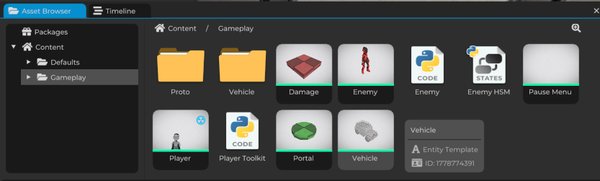
If you come from another engine, you can think of it as similar to a prefab.
An entity template can store:
- An entity hierarchy.
- Components.
- Component settings.
- Asset references.
- Child entities.
This is useful for anything you want to reuse:
- Enemies.
- Pickups.
- Doors.
- Props.
- Vehicles.
- UI widgets.
- Gameplay objects.
Instead of rebuilding the same object again and again, you create it once as an entity template and place instances of it where needed.
Rigid Body
A rigid body gives an entity physics behavior. It is used when an object needs collision or physical movement.
Examples:
- A crate that blocks the player.
- A ball that can roll.
- A door with collision.
- A wall that the player cannot pass through.
Rigid bodies are part of the physics side of the engine. You will use them when objects need to interact physically with the world.
Character Component
A character component is used for character-style movement. This is different from a regular rigid body because a character usually needs special behavior:
- Walking.
- Sliding along walls.
- Handling slopes.
- Jumping.
- Responding to player input.
For a player or NPC, a character component is usually a better starting point than trying to make a basic physics object behave like a character.
When we talk about a Character Component in Cave, we are referring to its Character Physics, not game specific logic (such as movement, etc).
Tags and Properties
Tags and properties help you identify and configure entities.
- A tag is a label that can help scripts or logic find and categorize things.
- Properties are editable values exposed to the editor. They let you adjust behavior without rewriting code every time.
For example, an enemy might have properties such as:
- Walk speed.
- Health.
- Attack distance.
- Patrol target.
Good use of properties makes your game easier to tune.
Properties are not limited to Entities: Scenes, Logic Bricks and other Assets can also have them.
When we talk about properties in Cave, we are specifically referring to such properties that can be accessible using Python dictionaries through code. They're almost always available in the Editor as well.
Python Component
A Python component lets an entity run Python logic.
This is useful when you want custom behavior, such as:
- Opening a door.
- Moving a platform.
- Handling player input.
- Spawning an object.
- Updating UI text.
- Triggering events.
Python components are one of the main ways to program gameplay in Cave.
Python Code Component
A Python Code component is used when the code is stored directly in the component instead of being linked as a separate script asset. This can be useful for quick tests, small behaviors, or prototypes.
For larger gameplay systems, a separate Python script asset is usually easier to organize and reuse.
Logic Brick
Logic bricks are a visual way to build logic. They are useful when you want behavior without writing Python code directly.
If you know Unreal's Blueprints, logic bricks are in a similar family of ideas: you connect logic visually instead of writing everything as text.
They are specifically useful to create any kind of logic you want without requiring writing Python code. For example, gameplay events and logic, object behavior, connecting systems together, triggers, etc.
You will learn them later in this guide.
Timeline
A timeline is an asset used for authored sequences. Timelines can animate or trigger things over time.
They are useful for:
- Cutscenes.
- Camera moves.
- Scripted events.
- Coordinated gameplay sequences.
Timelines are not required for every game, but they are useful when you want something to happen in a specific authored order.
Important: Timelines are not means for individual animation editing, such as editing a Walk Cycle animation for your character. In this case, you must use a specialized DCC software, such as Blender, then import it into Cave.
Player and Game Runtime
- The Cave Editor is where you build the project.
- The Cave Player is the runtime that runs the game.
When you press Play in the editor, Cave runs your scene in a game-like mode inside the editor. When you test as a standalone runtime, Cave launches the game in a separate player window.
The final exported game runs as a player/runtime build, not as the editor. This separation matters because some things are editor-only (for you to debug and/or develop your project), while others are part of the actual game.
The Most Important Relationship
If you remember only one thing from this lesson, remember this:
A scene contains entities, entities contain components, and components often use assets.
That is the backbone of a Cave project.