Cave: Getting Started Guide
Python Tooling and Editor Extensions
Lesson 16 of 19 • 10 XP
Keep your place in this quest
Log in or sign up for free to subscribe, follow lesson progress, and access more learning content.
In the previous lesson, you learned how Python can control entities during gameplay. But Python in Cave is not limited to the running game. You can also use it to create Editor Tools that help you build your game faster.
This is especially useful because many projects have repetitive tasks. Maybe you often place enemies, create checkpoints, organize folders, test values, or inspect scene data. Instead of doing everything by hand every time, you can create small tools that automate parts of your workflow. You can even create more advanced editors to allow you to do procedurally generated levels, procedural buildings, and much more.
In this lesson, you will learn:
- The difference between gameplay scripts and editor scripts.
- What an editor tool can be used for.
- How an editor tab tool is structured.
- Why
#editoronlymatters. - When it is worth creating a custom tool.
You do not need to build tools immediately when starting out, but it is good to know this system exists. It is one of those features that becomes more valuable as your project grows.
Gameplay Scripts vs Editor Tools
In a nutshell:
- Gameplay Scripts run while the game is playing.
- Editor Tools run inside the editor to help you work on the project.
| Script Type | Runs In | Example |
|---|---|---|
| Gameplay Script | Play Mode and Exported Game. | Player movement, enemy AI, doors, pickups. |
| Editor Tool | Cave Editor. | Level helper, batch renamer, scene inspector, procedural building gen, placement tool. |
For example, a door opening script is gameplay logic because the player should experience it while playing the game. A tool that places ten torches along a corridor is editor logic because it helps you build the level, but it does not need to exist in the exported game.
Why Editor Tools Are Useful
At first, custom tools may sound like something only large teams need.
But even solo developers can benefit from small tools because they reduce repeated manual work. If you do the same task many times, a simple editor script can make the project feel much faster to work on.
Editor tools can help with things like:
- Placing groups of entities.
- Checking if required components are missing.
- Creating common scene setups.
- Printing debug information.
- Testing values without entering Play Mode.
- Helping designers adjust gameplay data.
For example, imagine you are building a third-person game with many enemy camps. Instead of manually creating the same folder structure every time, you could create a tool that adds an Enemy Group, a few spawn points, and a trigger area automatically.
Editor-Only Scripts
Editor scripts usually start with this line:
#editoronly
This tells Cave that the script is meant for editor use.
That matters because editor tools may use APIs or behavior that only make sense inside the editor. You normally do not want a level design helper or debug panel to be part of your final game runtime.
This is also important to tell Cave which scripts to run at game startup and which scripts to ignore. By default, it runs every script, so if you want one to be ignored, it should include this comment as the first line.
So, if you are creating a script that exists only to help you work inside Cave Editor, make it editor-only.
Editor Tab Tools
One common way to create a tool is with an Editor Tab.
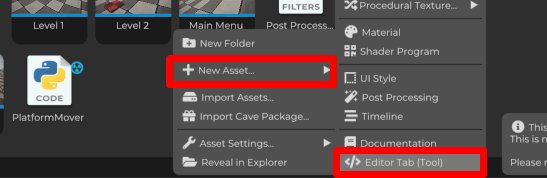
An editor tab is a custom panel that appears inside Cave Editor. It has a draw() method, and Cave calls that method while the tab is visible so the tool can draw buttons, text, properties, and other controls.
A very small editor tab looks like this:
#editoronly
import cave

class ExampleTab(cave.ui.DebugTab):
    def __init__(self):
        super().__init__()
        self.counter = 0

    def draw(self):
        cave.ui.text("This is a sample tool.")
        cave.ui.separator()

        self.counter = cave.ui.prop("Counter", self.counter)

        if cave.ui.buttonDark("Increase counter +1"):
            self.counter += 1
            print("Counter increased by +1")
This is also the default code when you add an editor tab. If you click to open it in the properties tab and then go to the editor tooling tab, you will see the example tab class appearing as a debug tab. Then all you need to do is to register or reload the tab and it will be available for you in the UI:
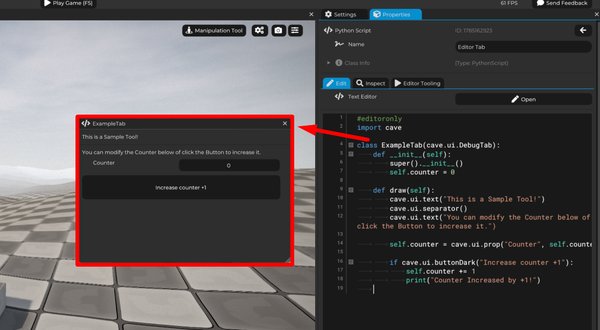
This example is simple, but it already shows the basic idea:
cave.ui.DebugTabcreates a custom editor tab.draw()defines what the tab shows.cave.ui.text()draws text.cave.ui.prop()draws an editable property.cave.ui.buttonDark()creates a button.print()can be used to send information to the console.
This is how simple creating custom Tools for Cave Editor is. You can use this same structure to build real tools later.
What the draw() Method Means
The draw() method is not like start() in a gameplay component.
It is called repeatedly while the tool is visible, because the editor UI needs to be drawn and updated. This means the code inside draw() should describe the current interface of the tool.
For example:
def draw(self):
    cave.ui.text("Level Helper:")

    if cave.ui.buttonDark("Create Enemy Group"):
        print("Create enemy group clicked")
The button is drawn every time the tab updates, but the code inside the if only runs when the user clicks the button.
That pattern is very common in editor tools.
A Practical Tool Idea
Let's say you are building a level and you often need the same basic folders:
EnvironmentEnemiesGameplay TriggersLightingAudioDebug Helpers
You could create an editor tool with a button called Create Level Folders. When clicked, it could create those folder entities in the current scene. Remember: a Folder in the Scene Graph is just an Entity with no components attached to it.
That may sound small, but small tools like this make large projects easier to keep organized. They also help you follow your own project conventions without having to remember every step manually.
Editor Components
Sometimes, you want to mix game play logic with editor logic. For example, you may want to have a component attached to an entity that also runs editor logic, for example, to display a debug information or a debug sphere indicating the movement or attack range of an enemy. In this case, instead of using cave.Component, you use cave.EditorComponent.
This is useful when an entity needs special editor behavior, but that behavior should not be part of the actual game.
For example:
- A spawn point could draw helper information in the editor.
- A trigger volume could expose debugging controls.
- A level marker could validate whether it is configured correctly.
The important idea is that editor scripts are for the workflow around making the game. Gameplay scripts are for the game itself.
IMPORTANT: In this case, the behavior is a little bit different than a regular component, because since it is an editor component, it will have an editor update method that will be called every frame while the editor is running and the game is not. But, and this is the most important difference, this component will actually be registered and initialized and be started with the entity itself, regardless if it's in play mode or not. So if you put a logic in the start method of this component, it will be called even outside the play mode.
This can potentially be dangerous, for example: if you put a logic on the start method of an editor component that gets all the entities in the scene and deletes them, then your game will be entirely deleted in the editor in a destructive (can't undo) way. That's not a fault, it's not a bug, it's how it works by design. So be aware of that.
If you want a safer way to do this, you can use the Python Code Component, because it does have an editor update method, and having this editor update written will not gonna interfere whether the start and end updates will be called in the editor or not (they won't). Check the Enemy in the initial project that Cave creates, because it does use the Python Code Component to draw a debug sphere around the enemies, indicating the radius that it can wander around. It's a good way of learning more about it.
When Should You Build a Tool?
Do not create a custom tool for every tiny action.
Build a tool when it solves a real workflow problem, such as:
- You repeat the same task many times.
- A setup is easy to forget.
- A scene needs validation.
- A designer needs a cleaner interface for changing values.
- A prototype needs quick debug buttons.
For a beginner, it is better to first build the game object manually. Then, once you understand the steps, you can automate the boring part.
What You Should Remember
Python in Cave can be used both for gameplay and for editor tooling.
Gameplay scripts control what happens while the game is running. Editor scripts help you build, inspect, debug, or organize the project inside Cave Editor.
You do not need editor tools to make your first game, but they are powerful when your project starts to grow. A small tool that saves five minutes today may save hours later.