Cave: Getting Started Guide
Audio Basics
Lesson 18 of 19 • 10 XP
Keep your place in this quest
Log in or sign up for free to subscribe, follow lesson progress, and access more learning content.
Audio in Cave is meant to be very straightforward: you import an audio file, preview it in the editor, and play it from your game when something happens.
In this lesson, you will learn:
- How audio assets work in the Asset Browser.
- How to preview an audio file.
- How to export or replace audio as
.ogg. - How to play audio from Python.
- What volume and pitch mean.
- What the returned audio handle can be used for.
- How the Audio Monitor tab helps debug audio.
You do not need a complex setup to begin. If you can import a sound and play it when a button, door, pickup, or character action happens, you already understand the core workflow.
Importing Audio
Cave can import audio files into the project as audio assets. As you saw at the Importing Assets section, cave supports .ogg audio files.
Once the audio is imported, it appears in the Asset Browser just like your other project content. From there, you can use it in scripts, UI callbacks, Logic Bricks, timeline events, or any other system that needs to play a sound.
For example, your project may have audio assets like:
Button ClickDoor OpenPickup CoinFootstepForest Ambience
Readable names are very useful here because audio is often referenced by name in Python.
Previewing Audio Assets
After importing an audio file, you can preview it directly inside Cave.
There are two simple ways to do this:
- Double-click the audio asset in the Asset Browser to quickly play a preview.
- Left-click once to select it and show its properties, where you can use the preview controls to play it.
The properties view is useful because it gives you more control while previewing. For example, you can test how the audio sounds with different pitch values before using that sound in the game.
This is especially helpful for effects like footsteps, impacts, UI clicks, and creature sounds. A small pitch change can make repeated sounds feel less identical.
Exporting or Replacing Audio
Audio assets can also be exported back as .ogg files. This is useful when you want to edit the audio in an external tool, for example.
You can also replace the audio asset with another .ogg file. This is practical when the logic already references an asset name, but you want to change the actual sound.
For example, your game may already use an asset named Door Open. If you replace the audio inside that asset, scripts that play Door Open can keep working without needing to be renamed.
Playing Audio using Audio Component
Sometimes you want to play a simple looping sound for an ambient, a music for the main menu, etc. In this case, the audio component will be enough:
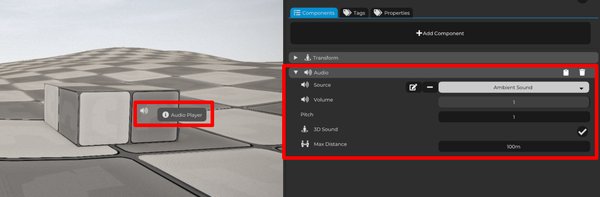
It will endlessly play the audio you specify to it, and allows you to control the volume, the pitch, if the sound is 3D, and the max distance. Notice that it does not expose more options, such as to how many times we want to loop the audio, etc. If you need more customization, you need to play the audio through code.
Playing Audio from Python
The simplest way to play an audio asset from Python is with cave.playSound().
cave.playSound("Button Click")
This plays the audio asset named Button Click.
You can also pass a volume value:
cave.playSound("Door Open", volume=0.8)
The volume default is 1.0, which means normal volume. Lower values make the sound quieter.
For example:
| Volume | Meaning |
|---|---|
2.0 |
Extra loud volume. |
1.0 |
Normal volume. |
0.5 |
Half volume. |
0.0 |
Silent. |
Most of the time, you will start with 1.0 and adjust from there.
Volume and Pitch
- Volume controls how loud the sound is.
- Pitch controls how high or low the sound feels. It also changes the playback speed, so higher pitch sounds faster and sharper, while lower pitch sounds slower and deeper.
The default value for both volume and pitch is 1.0.
For example:
| Value | Volume Result | Pitch Result |
|---|---|---|
1.0 |
Normal volume. | Normal pitch. |
0.5 |
Quieter. | Lower and slower. |
1.5 |
Louder if used as volume. | Higher and faster. |
When using cave.playSound(), volume is passed directly when the sound starts. Pitch is usually changed through the audio handle returned by the function.
The Audio Handle
When you call cave.playSound(), Cave returns an audio handle.
This handle represents the sound instance that is currently being played.
sound = cave.playSound("Footstep Stone", volume=0.8)
sound.pitch = 1.0
You can use this handle to control the sound after it starts.
For example:
sound = cave.playSound("Cave Ambience", volume=0.6, loop=True)

# Alternatively, you can use the getter and setter:
sound.setPitch(0.9)
sound.setVolume(0.4)
The handle can be used for things like:
- Changing volume.
- Changing pitch.
- Pausing the sound.
- Resuming the sound.
- Stopping the sound.
- Checking progress.
- Making the sound come from a 3D entity.
For example, if a door sound should come from the door entity:
sound = cave.playSound("Door Open", volume=1.0)
sound.setSource3D(self.entity, maxDistance=20)
You do not need this handle for every sound. If you just want to play a quick button click, this is enough:
cave.playSound("Button Click")
Use the handle when you need extra control.
It's even possible to randomize the foorstep a bit, giving more variety to it without requiring more sounds:
sd = cave.playSound("Footstep Stone")

# Setting its 3D source to be the entity playing it:
sd.setSource3D(entity, 20)

# Randomizing pitch and volume:
sd.pitch  = cave.random.uniform(0.5, 1.5)
sd.volume = cave.random.uniform(0.1, 0.3)
The code above is very similar to the one you'll find in the Walk and Run animation callback of the default Proto Character, when creating a new Cave Project.
The Audio Monitor Tab
Cave also includes an Audio Monitor tab for debugging audio while your game is running.
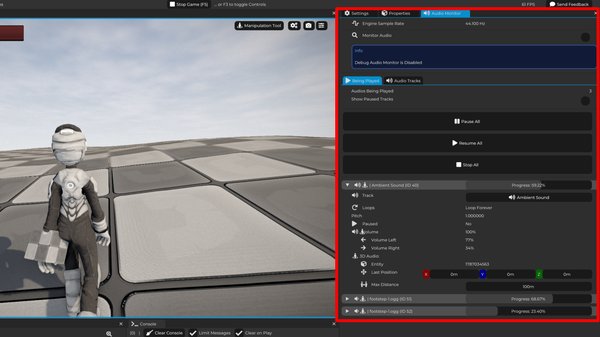
You can open it from the top-left Tabs menu in the editor.
The Audio Monitor shows information about audio currently being played, including playback progress. You can expand entries to inspect more details, which is very helpful when a project starts to have many sounds playing at the same time.
For example, the Audio Monitor can help you answer questions like:
- Is this sound actually being played?
- Is the same sound playing too many times?
- Is a looping ambience still active?
- How far through the sound is it?
You probably will not need the Audio Monitor constantly in a small prototype, but it becomes very useful when debugging more complex scenes.
What You Should Remember
Audio in Cave is simple: import an audio file, preview it in the Asset Browser, and play it from Python with cave.playSound().
Use volume to control loudness, pitch to control how high or low the sound feels, and keep the returned handle when you need to control the sound after it starts.
When audio gets harder to track, open the Audio Monitor tab from the Tabs menu and inspect what is being played.