Cave: Getting Started Guide
Installing and Launching Cave Engine for the First Time
Lesson 1 of 19 • 10 XP
Keep your place in this quest
Log in or sign up for free to subscribe, follow lesson progress, and access more learning content.

Welcome to Cave Engine!
Cave is a simple, fast, 3D desktop game engine made for building games without fighting the tool first. The editor gives you the usual building blocks of a commercial game engine, such as scenes, entities, components, assets, physics, animation, UI, audio, timelines, Python scripting, and more, but the workflow is designed to stay direct. You do not need to compile game code or wait for shader compilation just to start experimenting.
In this Getting Started quest, you will go from opening Cave for the first time to creating, testing, and exporting a basic game project. This first lesson is only about getting the editor installed correctly and launching it safely.
What You Need
Before you start, make sure you have:
- A valid Cave Engine license.
- A computer with updated Graphics Drivers: Cave requires OpenGL 4.3 or higher drivers in order to work. This Graphics API was released back in 2012, so your machine is likely to already support it.
- A normal local folder where you can extract the engine: On Windows, a simple location such as
C:\Cave Engine\is a good choice. The exact folder name is up to you, but it should be short, easy to find, and not inside a synced cloud folder.
Installing Cave Engine
Cave Engine is distributed as a compressed folder (ZIP). A unique build of the engine will be compiled and made available for you by our Server here. It is unique to you and sharing or redistributing it is against our End User License Agreement, so it's prohibited.
To install it, extract the whole engine package into one dedicated folder.
Important:
- Do not run Cave directly from the
.zipfile. - Do not extract Cave into a folder that already contains unrelated files.
- Do not split the engine files into different places.
After extracting it, the engine folder should contain the editor executable, the game/player executable, and important support folders such as Editor and Lib. The exact file names can vary a little depending on the operating system and engine build, but the important rule is simple: keep the extracted folder together.
> Cave needs its files to stay in the same folder structure. If you move, rename, or delete random files from the engine folder, the editor may fail to open.
Troubleshooting the Installation Path
Cave checks for several common install-path problems when it starts. These problems can cause crashes, missing files, or strange behavior, especially on Windows. Use a folder path that follows these rules:
- Keep Cave outside OneDrive, Dropbox, Google Drive, and similar synced folders.
- Avoid extracting it to the Desktop, especially if your Desktop is synced by OneDrive.
- Avoid non-ASCII characters in the folder path, such as accented letters or other special language characters.
- Keep the path reasonably short.
- Avoid folders that are marked as offline, virtual, or cloud-only.
Good example:
C:\Cave Engine\
Risky examples:
C:\Users\YourName\OneDrive\Desktop\Cave Engine\
C:\Users\YourName\Desktop With Accents\Cave Engine\
C:\Very\Long\Folder\Path\With\Many\Many\Nested\Folders\Cave Engine\
If Cave shows an "Invalid Install Path" warning, move the whole extracted engine folder to a cleaner local path and open it again.
Launching the Editor
To start Cave, open the Cave Editor executable inside the engine folder. On Windows, this will usually look like an .exe file. You can create a desktop shortcut or pin it to the taskbar, but create the shortcut to the executable instead of moving the executable out of the engine folder.
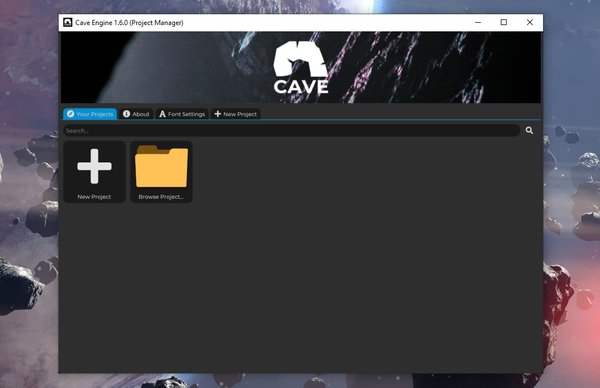
When Cave opens correctly, you should see the Project Manager window. This is the first screen of the editor. From there, you can create a new project, open a recent project, or browse for an existing one:
Understanding the Basic Engine Files
Before we move to the Engine Specific, let's understand the Engine Files a bit better. The engine folder contains more than one kind of file because Cave is split into the tools needed to create a game and the runtime needed to play an exported game.
- The editor executable is the application you use to create and edit projects.
- The game/player executable is used by exported projects. It runs the final game for players.
- The
Editorfolder contains editor data such as icons, default assets, fonts, interface files, and other resources the editor needs. - The
Libfolder contains required runtime libraries, including Python-related files used by Cave's scripting system.
For now, you do not need to understand every file in the folder. Just remember this rule:
> Open the editor from inside the extracted Cave folder, and keep the folder contents together.
Troubleshooting: Common First Launch Problems
If the Project Manager does not appear, or the editor appears and immediately closes, check these first:
1. The Engine Was Not Fully Extracted
If Cave cannot find a required file such as Editor/imgui.ini, the engine was probably not extracted correctly, or the executable was moved away from the rest of the files.
Fix it by extracting the full package again into a clean folder. Then launch the editor from that folder.
2. The Engine Is Inside a Problem Folder
If the editor warns about the install path, move Cave to a simpler local folder. Avoid cloud folders, synced Desktop folders, non-ASCII characters, and very long paths.
3. Antivirus Removed or Blocked Files
Some antivirus tools may quarantine files from freshly downloaded software. If files are missing after extraction, restore them from the antivirus quarantine or download and extract Cave again.
When in doubt, extract Cave into a clean folder and make sure all files from the package are still there.
4. Graphics Drivers Are Out of Date
Cave uses a desktop 3D renderer, so your graphics driver matters. If the editor crashes during startup, opens a blank window, or shows rendering errors, update your GPU driver from the GPU manufacturer's website.
This is especially important on laptops, older computers, or fresh Windows installations.
5. You Are Running the Wrong File
Use the editor executable to create projects. The game/player executable is for running exported games, not for editing source projects. If you want to make a game, open Cave Editor.
What Comes Next
Once the Project Manager opens, Cave is ready for your first project.
In the next lesson, you will create a new project, choose a starter template, adjust the editor zoom if needed, and understand what Cave generates for you.