Cave: Erste Schritte Anleitung
Understanding Entities
Lesson 9 of 19 • 25 XP
Keep your place in this quest
Log in or sign up for free to subscribe, follow lesson progress, and access more learning content.
Understanding Entities
Now let's understand the concept of an Entity in cave. Entities are the basic objects inside a Cave scene.
If a scene is a level, menu, or test space, entities are the things that exist inside that space. For example, a player, enemy, door, light, camera, trigger, UI button, sound source, and folder can all be entities.
In this lesson, you will learn about:
- Names.
- IDs.
- Active state.
- Parenting.
- Folders.
- Hierarchy order.
- Tags and properties.
- Template instances.
These details may sound small, but they make a big difference when a scene grows from a few objects into a real level.
What Is an Entity?
An Entity is an object in a scene.
An entity can represent:
- A visible 3D object.
- An invisible helper.
- A gameplay trigger.
- A UI element.
- A sound source.
- Or simply a folder used for organization.
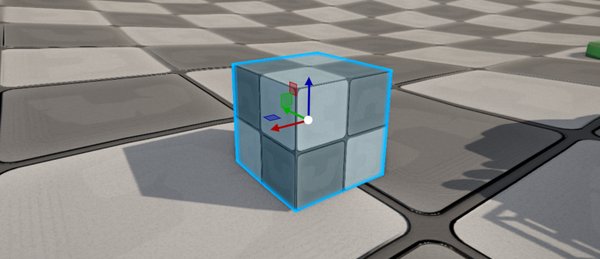
For example, a crate is a visible entity. A spawn point may be invisible during gameplay, but it is still an entity because it marks where something should happen.
Cave keeps this idea simple: scenes are built from entities.
Entities Are Component Containers
Entities do not do much alone, their features come from components. For example:
| Entity | Components It Might Have |
|---|---|
| Crate | Transform, Mesh, Rigid Body. |
| Player | Transform, Character, Camera, Python, Audio. |
| Door | Transform, Mesh, Rigid Body, Logic Bricks. |
| Torch | Transform, Mesh, Light, Audio. |
| Button | Transform, UI Element, Logic Bricks or Python. |
| --- |
This is why entities are flexible. A door is not a completely separate hardcoded object type. It is an entity made from pieces: a mesh to see it, collision to block the player, and logic to open or close it.
When you understand this, building objects becomes more practical. You stop asking "which object type do I need?" and start asking "which components does this entity need?"
Entity Names
Every entity has a name. You can rename an entity from its quick edit menu in the Scene Graph or from the Properties tab.
It's worth mentioning that names are for humans first:
- They make the Scene Graph easier to scan.
- They make debugging easier.
- They make it easier to talk about objects with teammates.
- They help you understand your own scene later.
Cave does not require every entity name to be unique. Multiple entities can share the same name, which is useful for repeated objects such as rocks, coins, crates, or enemies.
However, do not treat the name as the only reliable identifier for an entity.
Good names are simple and descriptive:
| Weak Name | Better Name |
|---|---|
Mesh |
Wooden Crate |
Empty |
Player Start |
Light |
Cave Entrance Light |
Folder |
Enemy Group |
The goal is not to make names fancy. The goal is to make the scene readable.
Entity names can also be used in code to carry a specific entity from your scene, but since you already know that multiple entities can have the same name, you also should be aware that if you carry an entity by its name, if there is multiple entities with this name, it can lead to some undefined behavior because you do not have a guarantee of which entity the scene will return for that name. It will return the first one it finds when searching for your query. So if it's important for you to get a specific object through code, like the player, make sure you give it a unique name.
Entity IDs
Cave tracks entities internally with unique IDs.
You usually do not need to edit or worry about those IDs. They exist so the engine can identify entities reliably, even when names are repeated. As a matter of facts, unique IDs are immutable, meaning that you cannot change them. They're automatically assigned by the engine.
Remember this:
| Thing | Purpose |
|---|---|
| Name | Helps you read the scene. |
| ID | Helps Cave track the object internally. |
If two enemies are both named Enemy, Cave can still tell them apart behind the scenes.
Entity Active State
Entities can be active or inactive.
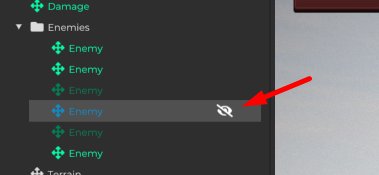
In the Scene Graph and Properties tab, this is shown with an eye-style active control.
| State | Meaning |
|---|---|
| Active | The entity participates in the scene normally. |
| Inactive | The entity stays in the scene, but is disabled. |
Depending on the entity and its components, disabling can affect:
- Rendering.
- Physics.
- Logic.
- Runtime updates.
- Component behavior.
A disabled entity will not gonna have any of its component updates called anytime, and the moment you disable an entity, it will also call the component's end method, and when you enable it back, it will call the component's start method.
You can safely assume that a disabled entity will not gonna contribute to the scene's physics calculations, logic, triggers, etc. Unless you manually query those entities from the scene and ignore the fact that they are disabled, of course.
The practical idea is simple: inactive means "kept here, but not currently participating."
Disabling vs Deleting
Disabling and deleting are not the same.
| Action | Result |
|---|---|
| Disable | Keeps the entity in the scene, but turns it off. |
| Delete | Removes the entity from the scene. |
Disable an entity when you may want it again later. Delete an entity when you are sure it should be removed.
For testing, disabling is often safer. If an enemy encounter feels too hard, disable a few enemies first and test the level. If the change feels right, you can clean the scene later.
Parenting Entities
Entities can be parented to other entities.
When an entity has a parent, it becomes part of that parent's hierarchy. If you move the parent, the children move with it.
Parenting is useful for:
- A sword attached to a character.
- A light attached to a torch.
- A camera attached to a vehicle.
- A group of props organized under a folder.
- UI elements grouped under a parent panel.
Parenting also affects transforms. A child entity's transform is evaluated relative to the parent hierarchy.
This is one of the simplest ways to keep related objects together.
Folder Entities
Folder entities are used for organization. They are especially helpful when your scene starts to contain many objects.
By definition, what makes an entity a folder is pretty much the absence of components in it, particularly a Transform and an UI Element component, because if an entity does not have a transform in the world and does not have a UI element, it will likely be used as a folder. But that's mostly a naming convention, so keep that in mind.
Common folder groups include:
- Environment.
- Gameplay Triggers.
- Enemies.
- Props.
- Lighting.
- UI.
- Audio.
- Debug Helpers.
Folders are not only about neatness. A clean Scene Graph helps you work faster because you can find the object you need without searching through hundreds of loose entities.
Entity Hierarchy Order
The order of entities in the Scene Graph matters for organization, and in some cases it can matter for how things are processed or displayed.
If you open a folder and see the structure below, this is harder to scan:
Crate
Player
Light
Enemy
Camera
Rock
Trigger
But this is easier:
Player
Camera
Lighting
Enemies
Environment
Gameplay Triggers
The goal is not to make the hierarchy fancy, but to make it useful.
If you can open a scene after a week away and immediately understand where the important objects are, your hierarchy is doing its job.
Important note here: due to how the engine optimizes its internal scene graph, the order of which the entities appear at hood level, meaning entities that do not have any parent, will be random, but child entities, the children, can have a specific set order, and you can organize it by right-clicking each individual entity in the editor and moving it up or down or to the top or to the bottom.
Entity Properties and Tags
Entities can store custom properties and tags.
| Feature | Purpose |
|---|---|
| Property | Stores an editable value. |
| Tag | Adds a label used for identification or grouping. |
For example, an enemy could have:
- A
Damageabletag. - A
healthproperty. - A
teamproperty. - A
patrolRadiusproperty.
Scripts and logic can use this data to make decisions.
A damage system might look for entities with the Damageable tag. An enemy script might read patrolRadius to decide how far the enemy can wander.
Properties and tags let you attach gameplay meaning to an entity without needing a special component for every small piece of data.
Tags are faster to query than properties, so they are better, for example, to identify an entity that can receive damage or is an enemy, etc. But they do not carry any value in it. A property is slower to query, but you can add a value. In terms of coding, entity properties are literally Python dictionaries.
Entity Template Preview
Some entities are instances of Entity Templates. The Player that you will find in the default new Cave Project, for example, is an instance of this template here:
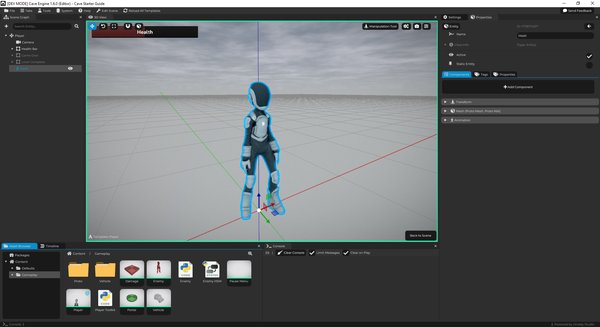
Template instances are shown differently in the Scene Graph, using Cave's template color. This helps you recognize that the entity comes from a reusable template asset.
When an entity is a template instance:
- Its internal children belong to the template.
- The placed instance belongs to the scene.
- The template structure is edited by opening the template asset.
- Local values can still be adjusted when exposed as properties.
The next lesson explains Entity Templates in more detail.
The Entity Mental Model
Think of an entity like a small container:
- The name helps you understand it.
- The ID helps Cave track it.
- The active state controls whether it participates.
- The parent controls where it belongs.
- The components define what it does.
- The properties and tags describe extra gameplay data.
That is the core of scene building in Cave.
Once entities make sense, the Scene Graph becomes much more than a list of objects. It becomes the structure of your game world.