Make 2D Games with Tiniest2D
Scenes and Objects
Lesson 4 of 11 • 10 XP
Keep your place in this quest
Log in or sign up for free to subscribe, follow lesson progress, and access more learning content.
Scenes
A scene is a place in your game. It can be a level, a menu, a room, or a small test area. Scenes remember where sprites and objects are placed, what the camera sees, and which objects can collide.
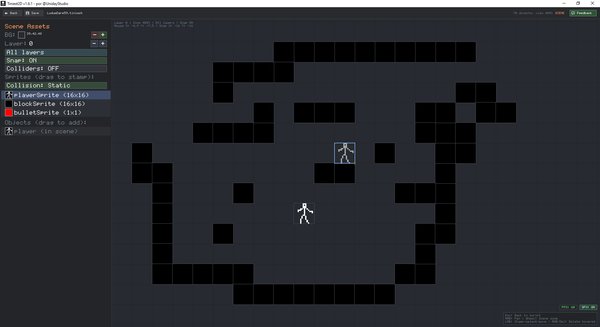
To create a scene, declare a variable with the Scene() constructor:
var level1 = Scene()
var menuScene = Scene("Main Menu")
The optional string parameter sets the scene name. Scene variables appear in an emerald/teal box.
To edit a scene:
- Ctrl+Click on the scene variable name
- The Scene Editor opens
Scene Editor Controls
The Scene Editor is where you arrange your level visually. You can stamp sprites into the scene for tiles and decorations, place objects that are controlled by script, and use layers to organize what appears in front or behind.
| Control | Action |
|---|---|
| Left panel | Lists all sprites and objects |
| Click sprite in list | Select for stamping |
| Left click in scene | Place selected sprite |
| Left click + drag | Stamp continuously |
| Right click | Delete placement under cursor |
| Right click + drag | Batch delete placements |
| Middle mouse drag | Pan the view |
| Mouse wheel | Zoom in/out |
| Layer +/- | Change active layer |
| Show All Layers | Toggle visibility of all layers |
| Snap | Toggle grid snapping |
| Show Colliders | Preview collision bounds |
| Static/None toggle | Set collision type for new placements |
| Escape | Return to script editor |
Objects
Objects are game entities that exist in a scene and can be controlled by code. A player, enemy, bullet, door, coin, or moving platform should usually be an object. Objects can have a sprite, a position, velocity, collision type, name, and other properties.
Create them with Object():
var player = Object("Player")
var enemy = Object("Enemy")
var bullet = Object()
The optional string sets the object's name.