Make 2D Games with Tiniest2D
Editor Basics
Lesson 2 of 11 • 10 XP
Keep your place in this quest
Log in or sign up for free to subscribe, follow lesson progress, and access more learning content.
The Script Editor
The script editor is the main place where you build your game. If you are new to programming, think of the script as a set of instructions that the engine follows every frame: create objects, move them, check input, play sounds, and react to collisions.
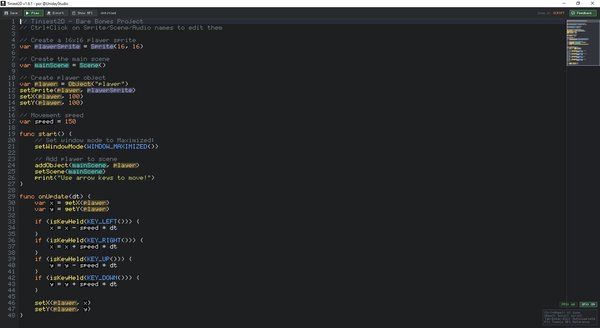
Tiniest2D keeps the editor text-first on purpose. Instead of switching between many windows, you write code and create assets from special script variables. When the editor recognizes a sprite, scene, audio, or object variable, it gives that word a colored box so you can open the matching editor directly from the code.
The editor has:
- Line numbers on the left
- Syntax highlighting for keywords, strings, numbers, and comments
- Special colored boxes around asset variables (Sprite, Scene, Audio, Object)
Editor Controls
These controls are the basic movements for writing and editing code. They work like a small code editor: move the cursor with the keyboard, type text, delete mistakes, undo changes, save often, and press F5 to try the game.
| Key | Action |
|---|---|
| Arrow keys | Move cursor |
| Home/End | Go to start/end of line |
| Ctrl+Home/End | Go to start/end of file |
| Page Up/Down | Scroll by page |
| Backspace/Delete | Delete characters |
| Ctrl+S | Save project |
| Ctrl+Z | Undo |
| Ctrl+Y | Redo |
| F5 | Play game |
| Escape | Stop playing / Exit editor mode |
Top Bar Icons
The top bar contains the actions you will use most often while learning. These buttons are always available in editor modes, so you do not need to remember every shortcut immediately.
At the top of the editor window:
- Save - Save the current project
- Play - Run the game in a separate window
- Export - Export as standalone executable