Make 2D Games with Tiniest2D
Engine API Reference
Lesson 8 of 11 • 10 XP
Keep your place in this quest
Log in or sign up for free to subscribe, follow lesson progress, and access more learning content.
API Reference
Complete API Reference
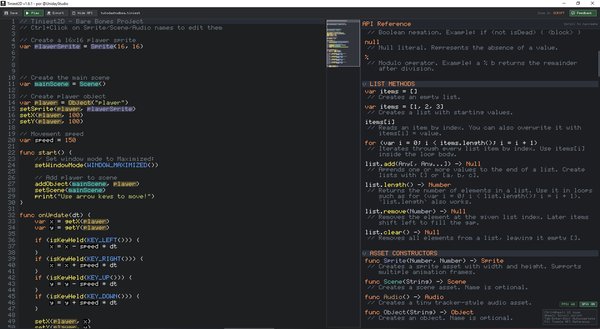
Also available in short form inside the Editor itself:
Asset Constructors
Constructors create the main asset types used by the editor. When you assign one to a variable, the editor recognizes it and lets you open the matching asset editor with Ctrl+Click.
| Function | Description |
|---|---|
Sprite(width, height) |
Creates a sprite asset with specified dimensions |
Scene() or Scene(name) |
Creates a scene asset |
Audio() |
Creates a tiny tracker-style audio asset |
Object() or Object(name) |
Creates a game object |
List Methods
Create lists with [] or [value1, value2, ...]. Read and overwrite entries with list[index], and iterate with for (var i = 0; i < list.length(); i = i + 1).
| Function | Description |
|---|---|
list.add(value) |
Appends a value to the end of the list |
list.length() |
Returns the number of elements in the list |
list.remove(index) |
Removes the element at the given index |
list.clear() |
Removes all elements from the list |
Operators
Operators are small symbols that perform common calculations. The modulo operator is especially useful for wrapping timers, indexes, animation steps, or repeating patterns.
| Operator | Description |
|---|---|
% |
Modulo. Returns the remainder after division |
Object Properties
Objects are the things your script usually moves and changes during the game. These functions read or update an object's position, sprite, collision behavior, layer, and visual tint.
| Function | Description |
|---|---|
getX(obj) |
Returns the object's X position |
setX(obj, x) |
Sets the object's X position |
getY(obj) |
Returns the object's Y position |
setY(obj, y) |
Sets the object's Y position |
getVelocityX(obj) |
Returns the object's X velocity |
setVelocityX(obj, vx) |
Sets the object's X velocity |
getVelocityY(obj) |
Returns the object's Y velocity |
setVelocityY(obj, vy) |
Sets the object's Y velocity |
getName(obj) |
Returns the object's name |
setName(obj, name) |
Sets the object's name |
getSprite(obj) |
Returns the object's sprite |
setSprite(obj, sprite) |
Assigns a sprite to the object (resets animation to frame 0) |
getLayer(obj) |
Returns the object's drawing layer |
setLayer(obj, layer) |
Sets the object's drawing layer (higher = drawn later) |
getTint(obj) |
Returns tint as [r, g, b, a] list |
setTint(obj, r, g, b, a) |
Sets the object's color tint (0-255 each) |
getCollisionType(obj) |
Returns the collision type number |
setCollisionType(obj, type) |
Sets the collision type |
Sprite Functions
Sprite functions let code inspect or modify sprite pixel data and animation speed. Most games draw sprites in the editor, but these functions are useful for procedural effects, debugging, or simple runtime changes.
| Function | Description |
|---|---|
fillSprite(sprite, r, g, b, a) |
Fills all pixels of all frames with a solid RGBA color (0-255) |
getPixel(sprite, frame, x, y) |
Returns [r,g,b,a] of pixel at (x,y) in given frame, or null if out of bounds |
setPixel(sprite, frame, x, y, r, g, b, a) |
Sets pixel color at (x,y) in given frame. Does nothing if out of bounds |
getAnimationFPS(sprite) |
Returns the sprite's animation speed in frames per second |
setAnimationFPS(sprite, fps) |
Sets the sprite's animation speed in frames per second |
Animation Functions
Animation functions work on objects that use sprites with multiple frames. Use them when you want code to inspect or force the current animation frame.
| Function | Description |
|---|---|
getFrame(obj) |
Returns the object's current animation frame index |
setFrame(obj, frameIndex) |
Sets the object's animation frame (resets timer) |
getFrameCount(obj) |
Returns the number of frames in the object's sprite |
Transform Functions (Flip/Rotation)
Transform functions change how an object's sprite is drawn without editing the sprite itself. They are good for reusing one sprite in multiple directions.
| Function | Description |
|---|---|
getFlipX(obj) |
Returns whether the object is flipped horizontally |
setFlipX(obj, flip) |
Sets horizontal flip. true = flipped, false = normal |
getFlipY(obj) |
Returns whether the object is flipped vertically |
setFlipY(obj, flip) |
Sets vertical flip. true = flipped, false = normal |
getRotation(obj) |
Returns the object's clockwise rotation angle in degrees |
setRotation(obj, degrees) |
Sets the object's clockwise rotation angle in degrees |
move(obj, x, y) |
Moves the object in its local rotated axes. Positive X moves right, positive Y moves down |
getCenterOffset(obj) |
Returns the normalized rotation pivot as [x, y] |
setCenterOffset(obj, x, y) |
Sets the normalized rotation pivot. Values are clamped from 0 to 1 |
getCenterOffsetX(obj) |
Returns the normalized pivot X |
setCenterOffsetX(obj, x) |
Sets the normalized pivot X |
getCenterOffsetY(obj) |
Returns the normalized pivot Y |
setCenterOffsetY(obj, y) |
Sets the normalized pivot Y |
getCenter(obj) |
Returns the world position of the rotation pivot as [x, y] |
setCenter(obj, x, y) |
Moves the object so its rotation pivot is at world position (x, y) |
getCenterX(obj) |
Returns the world X position of the rotation pivot |
setCenterX(obj, x) |
Moves the object so its pivot has world X x |
getCenterY(obj) |
Returns the world Y position of the rotation pivot |
setCenterY(obj, y) |
Moves the object so its pivot has world Y y |
getDirectionRight(obj) |
Returns the object's rotated right direction as [x, y] |
getDirectionDown(obj) |
Returns the object's rotated down direction as [x, y] |
getDirectionLeft(obj) |
Returns the object's rotated left direction as [x, y] |
getDirectionUp(obj) |
Returns the object's rotated up direction as [x, y] |
The default center offset is [0.5, 0.5], which rotates around the middle of the sprite. [0, 0] rotates around the object's top-left location, and [1, 1] rotates around location + (width, height).
Warning for older projects: Starting in Tiniest2D 1.8, getRotation() and setRotation() use degree angles instead of quarter-turn values. Rotated object colliders now affect physics and scene queries.
Collision Types
Collision types decide how an object participates in collision checks. Pick the type based on the role of the object: walls are usually static, players are usually dynamic, and pickups are often triggers.
| Constant | Value | Description |
|---|---|---|
COLLISION_NONE() |
0 | No collision detection |
COLLISION_STATIC() |
1 | Collides but doesn't move |
COLLISION_DYNAMIC() |
2 | Collides and gets pushed out |
COLLISION_TRIGGER() |
3 | Detects collision but doesn't block |
Scene Functions
Scene functions control which scene is active, which objects are inside it, and scene-wide settings like background color and gravity. They also provide search helpers for finding objects at positions or by name.
| Function | Description |
|---|---|
addObject(scene, obj) |
Adds an object to a scene |
removeObject(scene, obj) |
Removes an object from a scene |
setScene(scene) |
Sets the active scene |
getScene() |
Returns the current active scene |
resetScene(scene) |
Resets scene to its initial state (as designed in editor) |
setBackgroundColor(scene, r, g, b) |
Sets the scene background color (RGB 0-255) |
getBackgroundColor(scene) |
Returns background color as [r, g, b] list |
getGravityX(scene) |
Returns the scene gravity X component |
setGravityX(scene, gx) |
Sets the scene gravity X component |
getGravityY(scene) |
Returns the scene gravity Y component |
setGravityY(scene, gy) |
Sets the scene gravity Y component (positive = down) |
getObjectAt(scene, x, y) |
Returns the first object at point (x,y), or null |
getObjectsAt(scene, x, y) |
Returns a list of all objects at point (x,y) |
getObjectsInBox(scene, x, y, w, h) |
Returns all objects overlapping the box |
getObjectByName(scene, name) |
Finds an object by name, or null if not found |
getObjectCount(scene) |
Returns the number of objects in the scene |
getAllObjects(scene) |
Returns a list of all objects in the scene |
isObjectInScene(scene, obj) |
Returns true if the object is in the scene |
getObjectsBySprite(scene, sprite) |
Returns all objects using the given sprite |
getObjectsByCollisionType(scene, type) |
Returns all objects with the given collision type |
Audio Playback
Audio playback functions start and stop audio assets from script. playAudio() returns a handle so you can later stop or check that specific playback instance.
| Function | Description |
|---|---|
playAudio(audio) |
Starts an audio asset and returns a playback handle id |
stopAudio(handle) |
Stops a playback handle returned by playAudio() |
isAudioPlaying(handle) |
Returns true while the playback handle is still active |
Screen Functions
Screen functions help when you need to know the window size or convert between screen pixels and world positions. This is useful for mouse aiming, click detection, and camera-aware UI.
| Function | Description |
|---|---|
getScreenWidth() |
Returns the screen/window width in pixels |
getScreenHeight() |
Returns the screen/window height in pixels |
screenToWorld(screenX, screenY) |
Converts screen pixel coordinates to world coordinates. Returns [worldX, worldY] |
worldToScreen(worldX, worldY) |
Converts world coordinates to screen pixel coordinates. Returns [screenX, screenY] |
Window Mode
Control the window mode for exported games. These functions have no effect when playing in the editor (the editor has higher authority over window state).
| Constant | Value | Description |
|---|---|---|
WINDOW_WINDOWED() |
0 | Regular windowed mode |
WINDOW_MAXIMIZED() |
1 | Maximized window (default) |
WINDOW_FULLSCREEN() |
2 | Borderless fullscreen |
| Function | Description |
|---|---|
getWindowMode() |
Returns the current window mode constant |
setWindowMode(mode) |
Sets the window mode. Only works in exported games |
Example:
func start() {
    // Set window mode (WINDOW_MAXIMIZED is the default for exported games)
    setWindowMode(WINDOW_MAXIMIZED())
}
Note: If setWindowMode() is never called in an exported game, the default is WINDOW_MAXIMIZED.
UI Functions
UI uses a virtual screen-space resolution. The default UI space is 100 x 100.
Font size can be pushed for subsequent text widgets with uiPushFontSize(size) and restored with uiPopFontSize(). Font colors can be stacked with uiPushFontColor(r, g, b[, a]), and UI element fills can be stacked with uiPushElementColor(r, g, b[, a]). Like the rest of the immediate-mode UI, these overrides apply while building the current frame's UI. If the pushed size is 0 or less, the engine uses automatic sizing.
| Function | Description |
|---|---|
getUIResolutionX() |
Returns the current virtual UI width |
setUIResolutionX(width) |
Sets the virtual UI width used for subsequent UI calls |
getUIResolutionY() |
Returns the current virtual UI height |
setUIResolutionY(height) |
Sets the virtual UI height used for subsequent UI calls |
uiPushFontSize(size) |
Pushes a font size scale for subsequent UI text. Values <= 0 use automatic sizing |
uiPopFontSize() |
Pops the most recent UI font size override |
uiPushFontColor(r, g, b) or uiPushFontColor(r, g, b, a) |
Pushes a font color override for subsequent UI text |
uiPopFontColor() |
Pops the most recent UI font color override |
uiPushElementColor(r, g, b) or uiPushElementColor(r, g, b, a) |
Pushes a fill color override for boxes, buttons, toggles, sliders, and image buttons |
uiPopElementColor() |
Pops the most recent UI element color override |
uiLabel(text, x, y) |
Draws screen-space text at virtual UI coordinates |
uiBox(x, y, w, h) |
Draws a simple panel box |
uiButton(text, x, y, w, h) |
Draws a button and returns one of the UI_*() state constants |
uiToggle(text, value, x, y, w, h) |
Draws a toggle and returns the updated boolean value |
uiSlider(text, value, min, max, x, y, w, h) |
Draws a slider and returns the updated numeric value |
uiSprite(sprite, x, y) |
Draws a sprite in UI space using the sprite's natural size in UI units |
uiSprite(sprite, x, y, w, h) |
Draws a sprite in UI space with an explicit size |
uiImageButton(sprite, x, y, w, h) |
Draws a sprite button and returns one of the UI_*() state constants |
UI State Constants
UI functions return state constants so your script can tell whether a widget is idle, hovered, held, or clicked. Usually UI_CLICKED() is the value you check for button actions.
| Constant | Value | Description |
|---|---|---|
UI_IDLE() |
0 | Widget is neither hovered nor pressed |
UI_HOVERED() |
1 | Mouse is hovering the widget |
UI_HELD() |
2 | Mouse button is down on the widget |
UI_CLICKED() |
3 | Widget was clicked on this frame |
Camera Functions
The camera position represents the center of the view. The zoom maintains consistent vertical world view regardless of screen size.
| Function | Description |
|---|---|
getCameraX(scene) |
Returns camera X position (center of view) |
setCameraX(scene, x) |
Sets camera X position |
getCameraY(scene) |
Returns camera Y position (center of view) |
setCameraY(scene, y) |
Sets camera Y position |
getCameraZoom(scene) |
Returns camera zoom level |
setCameraZoom(scene, zoom) |
Sets camera zoom. Zoom 1.0 shows 720 world units vertically, 3.0 shows 240 units. |
Zoom behavior: The zoom maintains consistent vertical world view regardless of window size or aspect ratio. Wider screens show more horizontally but the same amount vertically.
Input Functions
Input functions let the game react to keyboard and mouse state. Use Pressed for one-frame actions, Held for continuous movement, and Released for actions that happen when a button is let go.
| Function | Description |
|---|---|
isKeyPressed(key) |
True only on the frame the key was pressed |
isKeyHeld(key) |
True while the key is held down |
isKeyReleased(key) |
True only on the frame the key was released |
getMouseX() |
Returns mouse X in screen coordinates |
getMouseY() |
Returns mouse Y in screen coordinates |
getMouseDeltaX() |
Returns mouse X movement this frame |
getMouseDeltaY() |
Returns mouse Y movement this frame |
isMouseButtonPressed(button) |
True only on the frame the mouse button was pressed |
isMouseButtonHeld(button) |
True while the mouse button is held down |
isMouseButtonReleased(button) |
True only on the frame the mouse button was released |
getFPS() |
Returns the current frames per second |
Mouse Button Constants
Mouse button constants are passed into the mouse input functions. They make code easier to read than raw numbers.
| Constant | Description |
|---|---|
MOUSE_LEFT() |
Left mouse button |
MOUSE_RIGHT() |
Right mouse button |
MOUSE_MIDDLE() |
Middle mouse button |
Key Constants
Key constants are passed into keyboard input functions. The engine exposes letters, numbers, function keys, arrows, and a small set of common special keys.
Letters: KEY_A() through KEY_Z()
Numbers: KEY_0() through KEY_9()
Function keys: KEY_F1() through KEY_F12()
Special keys:
| Constant | Key |
|----------|-----|
| KEY_SPACE() | Spacebar |
| KEY_ENTER() | Enter/Return |
| KEY_ESCAPE() | Escape |
| KEY_TAB() | Tab |
| KEY_BACKSPACE() | Backspace |
| KEY_DELETE() | Delete |
| KEY_SHIFT() | Shift |
| KEY_CTRL() | Control |
| KEY_ALT() | Alt |
| KEY_LEFT() | Left arrow |
| KEY_RIGHT() | Right arrow |
| KEY_UP() | Up arrow |
| KEY_DOWN() | Down arrow |
| KEY_HOME() | Home |
| KEY_END() | End |
Math Functions
Math helpers cover common calculations used in movement, animation, randomness, and value limits. They keep scripts shorter and easier to read.
| Function | Description |
|---|---|
abs(n) |
Absolute value |
min(a, b) |
Returns smaller of two numbers |
max(a, b) |
Returns larger of two numbers |
clamp(value, min, max) |
Clamps a value between min and max |
lerp(a, b, t) |
Linearly interpolates from a to b using t |
floor(n) |
Rounds down to nearest integer |
ceil(n) |
Rounds up to nearest integer |
round(n) |
Rounds to the nearest integer |
sign(n) |
Returns -1, 0, or 1 depending on the sign of the input |
sqrt(n) |
Square root |
pow(base, exponent) |
Raises a base to an exponent |
sin(radians) |
Sine of an angle in radians |
cos(radians) |
Cosine of an angle in radians |
tan(radians) |
Tangent of an angle in radians |
random() |
Returns a random float between 0.0 and 1.0 |
randomRange(min, max) |
Returns a random float between min and max |
randomInt(min, max) |
Returns a random integer between min and max (inclusive) |
PI() |
Returns pi (3.14159...) |
TAU() |
Returns tau (2 * pi = 6.28318...) |
TWOPI() |
Returns 2 * pi (same as TAU) |
E() |
Returns Euler's number e (2.71828...) |
deg2rad(degrees) |
Converts degrees to radians |
rad2deg(radians) |
Converts radians to degrees |
Utility Functions
Utility functions are general helpers that do not belong to a specific asset type. print() is especially useful while learning because it shows what your script is doing.
| Function | Description |
|---|---|
print(value) |
Prints to debug output (shown in-game) |
quitGame() |
Exits the game. In the editor, stops play mode. In exported games, closes the application |
String Functions
String functions work with text values. For now, this section is intentionally small.
| Function | Description |
|---|---|
strlen(string) |
Returns the length of a string (number of characters) |
Storage Functions
Save and load game data to files. Supports numbers, strings, booleans, and lists (including nested lists). Does NOT support Sprite, Scene, Object, or Audio values.
| Function | Description |
|---|---|
save(path, data) |
Saves data to a file in binary format. Returns true on success |
save(path, data, format) |
Saves data with specified format: "binary" or "text" |
save(path, data, format, key) |
Saves data with encryption using the provided key string |
load(path) |
Loads data from a file. Returns the data or null on failure |
load(path, key) |
Loads encrypted data using the provided key string |
fileExists(path) |
Returns true if the file exists at the given path |
deleteFile(path) |
Deletes the file at the given path. Returns true on success |
getAppDataPath() |
Returns the AppData/Tiniest2D folder path (creates if needed) |
getDocumentsPath() |
Returns the user's Documents folder path |
getGamePath() |
Returns the directory where the game executable is located |
Example: Saving and Loading Player Progress
// Save player data
var playerData = [100, "Player1", true, [1, 2, 3]]
var savePath = getAppDataPath() + "/MyGame/save.dat"
if (save(savePath, playerData)) {
    print("Game saved!")
}

// Load player data
if (fileExists(savePath)) {
    var loaded = load(savePath)
    if (loaded != null) {
        var health = loaded[0]
        var name = loaded[1]
        var hasKey = loaded[2]
        var inventory = loaded[3]
    }
}

// Encrypted save (for hiding data from casual inspection)
var secretData = ["secret", 12345]
save(getAppDataPath() + "/MyGame/config.dat", secretData, "binary", "mySecretKey")
var decrypted = load(getAppDataPath() + "/MyGame/config.dat", "mySecretKey")

// Text format (human-readable, useful for debugging)
save(getAppDataPath() + "/MyGame/debug.txt", playerData, "text")
Notes:
- Binary format (default) is compact and faster
- Text format is human-readable, useful for debugging
- Wrong encryption key returns
null(data will be garbage) - Directories are created automatically when saving