Make 2D Games with Tiniest2D
Audio and Music
Lesson 5 of 11 • 10 XP
Keep your place in this quest
Log in or sign up for free to subscribe, follow lesson progress, and access more learning content.
Audio
Audio assets are sounds your game can play. They can be short sound effects, like jumping and collecting coins, or looping music. Tiniest2D uses a tiny tracker-style editor, which means sounds are built from notes placed on a grid instead of imported audio files.
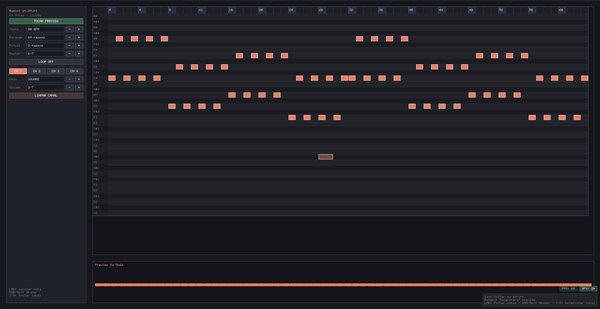
To create an audio asset:
var jumpSound = Audio()
var bgMusic = Audio()
To edit audio:
- Ctrl+Click on the audio variable name
- The Audio Editor opens as a tiny built-in sequencer
Audio Editor
The Audio Editor is a simple note grid designed for quick retro sound effects and looping music. Each row is a pitch, each column is a moment in time, and each channel can play its own notes. This is enough for classic arcade-style sounds without needing a full music program.
Each audio asset has:
- 4 channels
- Tracker-style note steps
- Per-channel waveform and volume
- Tempo, length, brush length, and loop toggle
- Built-in playback preview
The editor is intentionally minimal: pick a channel, click notes into the grid, and press Space to hear the result.
Audio Editor Controls
Start by selecting a channel, clicking a few notes into the grid, and pressing Space. After that, change the waveform, tempo, and volume to hear how the sound changes.
| Control | Action |
|---|---|
| Left click on grid | Place a note using the current brush length |
| Right click / Delete | Erase the note under the cursor |
| Space | Play/stop preview |
| 1 / 2 / 3 / 4 | Select channel |
| Tempo +/- | Change playback speed |
| Length +/- | Change total pattern length |
| Brush +/- | Change how many steps each placed note lasts |
| Wave +/- | Change channel waveform |
| Volume +/- | Change channel volume |
| Loop toggle | Make the clip loop until stopped |
| Clear Channel | Remove all notes from the active channel |
| Escape | Return to script editor |