Make 2D Games with Tiniest2D
Sprites and Animation
Lesson 3 of 11 • 10 XP
Keep your place in this quest
Log in or sign up for free to subscribe, follow lesson progress, and access more learning content.
Creating Assets
Assets are the pieces your game uses: images, scenes, sounds, and objects. In Tiniest2D, you create most assets by writing a variable in the script. The editor notices constructors like Sprite() and lets you edit the asset visually.

Sprites
Sprites are pixel-art images. They are used for characters, walls, coins, buttons, bullets, backgrounds, and anything else that needs to be drawn. A sprite can be a single image or a small animation made from multiple frames.
To create a sprite, declare a variable with the Sprite() constructor:
var playerSprite = Sprite(16, 16)
var coin = Sprite(8, 8)
var wall = Sprite(32, 32)
The numbers are width and height in pixels. After saving, you'll see the variable name wrapped in a dark box - this indicates it's a sprite asset.
To edit a sprite:
- Ctrl+Click on the sprite variable name
- The Sprite Editor opens
Sprite Editor Controls
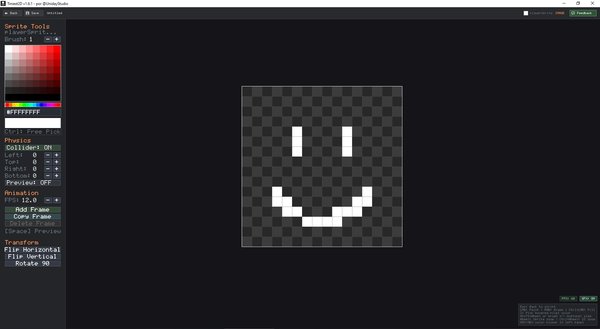
The Sprite Editor is where you draw the image pixel by pixel. If you are new to pixel art, start small: 8x8 or 16x16 sprites are easier to read, edit, and animate.
| Control | Action |
|---|---|
| Left click | Paint pixel with current color |
| Right click | Erase pixel (transparent) |
| Middle mouse drag | Pan the view |
| Mouse wheel | Zoom in/out |
| Color palette | Click to select color |
| Width/Height +/- | Resize the sprite |
| Collider toggle | Enable/disable collision bounds |
| Collider offsets | Adjust L/T/R/B collision insets |
| Show Collider | Preview collision bounds |
| Space | Toggle animation preview |
| Left/Right arrows | Navigate between frames |
| Escape | Return to script editor |
Animation Panel
Animation is made by showing several sprite frames quickly in sequence. For example, a walking character might have one frame with the left foot forward and another with the right foot forward.
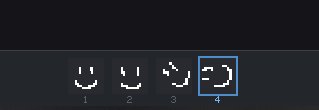
The Animation panel (in the left sidebar) lets you manage sprite frames:
| Control | Action |
|---|---|
| FPS +/- | Adjust animation speed (frames per second) |
| Add Frame | Add a new blank frame at the end |
| Copy Frame | Duplicate the current frame (inserted after current) |
| Delete Frame | Delete current frame (only if more than 1 frame) |
| Frame Strip | Click thumbnails at bottom to select frames |
When a sprite has multiple frames, objects using it will automatically animate at runtime. Each object tracks its own animation state independently.