Cave: Getting Started Guide
Assets and Project Content
Lesson 6 of 19 • 10 XP
Keep your place in this quest
Log in or sign up for free to subscribe, follow lesson progress, and access more learning content.
In Cave, your project is made from assets.
Assets are the reusable pieces of content that live in the Asset Browser: scenes, entity templates, meshes, materials, textures, audio, scripts, logic files, timelines, and more.
The better you understand assets, the easier it becomes to build, organize, and reuse your work.
What Is an Asset?
An asset is a piece of project content stored by Cave.
An asset can be something visual, like a texture or mesh. It can also be something functional, like a Python script, logic bricks file, scene, or timeline. Assets are stored in the project so Cave can reference them from entities, components, editor tools, and runtime systems.
> Behind the scenes, Cave threats everything that needs to be serialized (write and read to disk) or displayed in the Editor as an Asset.
For example:
- A "mesh entity" can use a mesh asset.
- A mesh component can use a material asset.
- A material can use texture assets.
- A Python component can use a Python script asset.
- A "level" can be stored as a scene asset.
- A reusable object setup can be stored as an entity template asset.
This means assets are not just files sitting in a folder. They are the building blocks your game uses.
The Asset Browser
The Asset Browser is the main place where you manage assets.
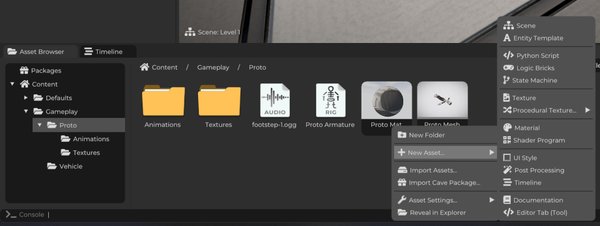
Use it to:
- Browse project folders.
- Select assets.
- Open folders.
- View thumbnails.
- Import files.
- Rename assets.
- Duplicate assets.
- Move assets between folders.
- Delete assets.
- Export assets as Cave packages.
The Asset Browser has a folder area and a content area. The folder area helps you move through the project structure. The content area shows the assets inside the current folder.
When you select an asset, its settings appear in the Properties tab.
Common Asset Types
You will see several asset types while working in Cave.
| Asset Type | What it is for |
|---|---|
| Scene | A level, menu, test area, or playable space. |
| Entity Template | A reusable entity hierarchy, similar to a prefab. |
| Mesh | 3D model data. |
| Material | Surface settings used by meshes and terrain. |
| Texture | Image data used by materials, UI, or other systems. |
| Audio | Sound or music content. |
| Armature | Skeletal Bone Structure that a Mesh usually refers to when it's animated. |
| Animation | Skeletal Animation Data. |
| Python Script | Code used by Python components or tools. |
| Logic Bricks | Visual gameplay logic. |
| State Machine | State-based behavior logic. |
| Timeline | Authored sequences such as cutscenes or scripted events. |
| Shader Program | Custom rendering behavior. |
| Post Processing | Full-screen rendering effects. |
| Documentation | Text documentation stored inside the project. |
| --- |
You do not need to master all asset types immediately. Early on, you will probably use scenes, entity templates, meshes, materials, textures, scripts, and logic assets the most.
Organizing Assets
Projects become easier to work with when assets are organized clearly.
A simple project structure might look like this:
Scenes
Characters
Props
Materials
Textures
Scripts
Logic
UI
Audio
Timelines
You can choose a different structure if it fits your project better. The important thing is that you can find things later.
Good names also matter. Prefer names that describe the asset's purpose.
Cave allows whitespaces in asset names, and the Asset Browser already shows assets with their type styling. Because of that, you usually do not need prefixes such as Material, Texture, or short type codes inside the name itself.
Use readable names. If you prefer compact names, PascalCase is also fine.
For example:
| Weak Name | Better Name |
|---|---|
Material |
Wet Rock |
Texture |
Wood Crate Diffuse |
Scene |
Cave Entrance |
Script |
DoorController |
EntityTemplate |
Enemy Bat |
The goal is not to force one naming style on every project. The goal is to avoid vague names and keep related assets easy to find.
Importing New Assets
You can import supported files by dragging them from your computer into the Asset Browser. Cave will try to import the file and create the correct asset type.
Common imported content includes:
- 3D models.
- Images.
- Audio files.
You can also use the editor menus to reimport assets when needed.
Importing is only the first step. After an asset exists in the project, you can select it, edit its settings in Properties, and use it in scenes or other assets.
We will learn more about importing Assets later.
Meshes, Materials, and Textures
Meshes, materials, and textures work together.
- A
Meshis the shape. - A
Materialcontrols how the surface looks. - A
Textureis image data used by a material or another system.
For example, a wooden crate might use:
- A crate mesh.
- A wood material.
- One or more wood texture images.
The entity in the scene is not the mesh asset itself. The entity has a component that uses the mesh asset and material asset. That separation is useful because the same mesh or material can be reused many times. If you edit a shared material, every object using that material can update with it.
Scenes and Entity Templates
Two asset types are especially important when building gameplay:
- A
SceneStores a level or playable space. - An
Entity TemplateStores a reusable entity setup.
Use scenes for big spaces, menus, test maps, and levels.
Use entity templates for objects you want to place many times, such as:
- Pickups.
- Enemies.
- Doors.
- Props.
- Vehicles.
- UI widgets.
The scene says what exists in a specific place and the entity template says how a reusable object is built.
Asset References
Entities and components can reference assets.
For example:
- A mesh component references a mesh.
- A mesh component can reference a material.
- A material references textures.
- A Python component references a Python script.
- A timeline can reference entities or data it needs to animate or trigger.
This reference system is what lets one asset be reused in many places. Be careful when deleting assets. If another part of the project depends on an asset, deleting it can leave missing references.
If you are unsure whether something is still used, it is usually safer to move it to a temporary folder first, test the project, and delete it later.
Saving Project Content
Cave tracks changes to project content. When an asset has been changed but not saved, it is considered "dirty".
With that in mind, use:
| Shortcut | Action |
|---|---|
Ctrl + S |
Save dirty project content. |
Ctrl + Shift + S |
Save everything. |
| --- |
You can also save from the File menu.
Most of the time, saving dirty content is what you want. It saves the assets that changed instead of rewriting everything.
Before testing in Play Mode, Cave saves dirty project content automatically.
Finding Assets Later
As your project grows, finding content quickly becomes important.
Use:
- Clear folder organization.
- Consistent names.
- The Asset Browser.
- The Finder tab.
- The Properties tab after selecting an asset.
- The File menu option to open the project in your system file explorer when needed.
The fastest projects to work on are not always the smallest ones. They are the ones where content is easy to find.
A Useful Habit
When you create or import something new, do these three things:
- Put it in the right folder.
- Give it a useful name.
- Save the project.
That small habit prevents a lot of confusion later.